
Open Shared Mailbox
Web
There are two options:
- Pin it:
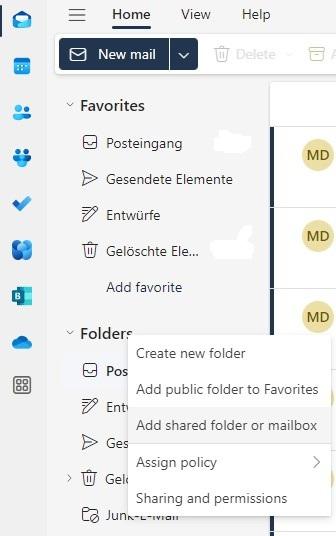
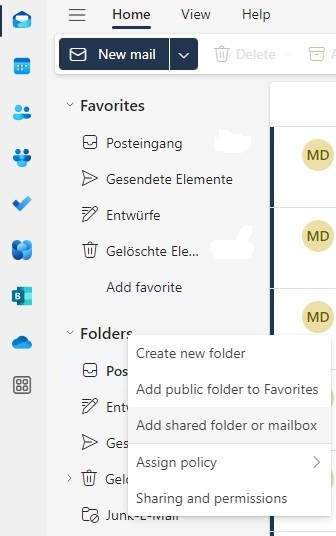
- Right-click on Folders and select Add shared folder or mailbox.
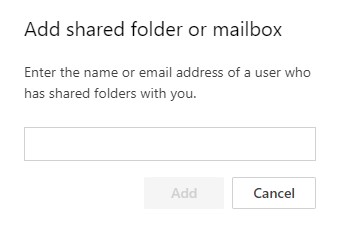
- Enter the name of the shared mailbox.
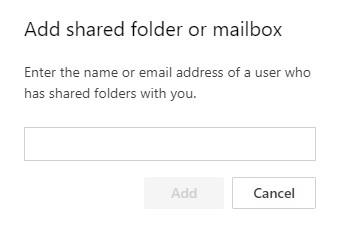
- Click on Add.
- Open it in a new tab:
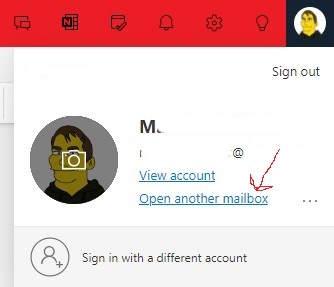
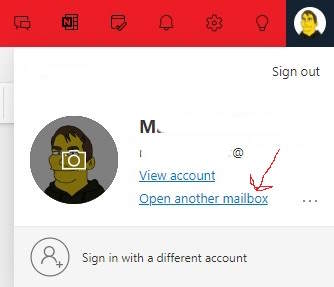
- Click on your picture in the upper right and select Open another mailbox.
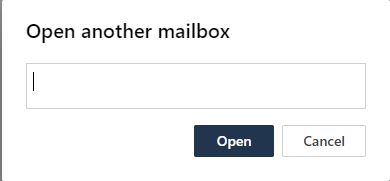
- Enter the name of the shared mailbox.
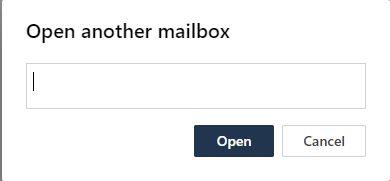
- Click on Open.
Smartphone
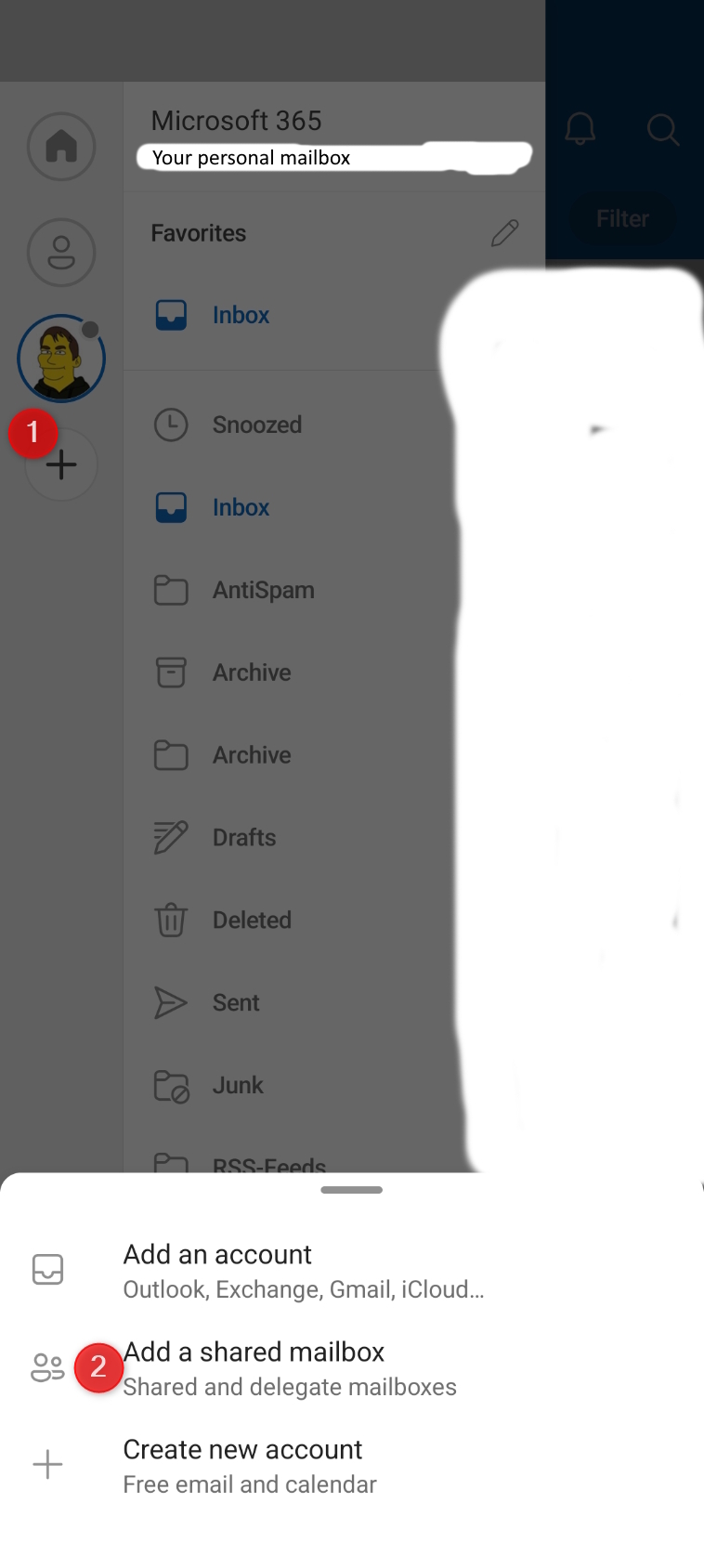
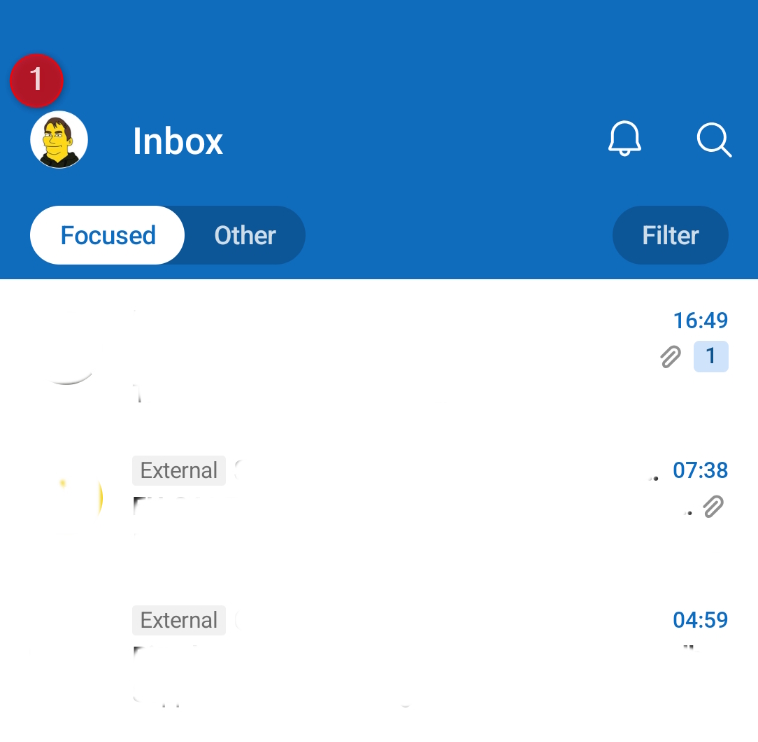 Click on + in the left menu that just openend and choose Add shared mailbox
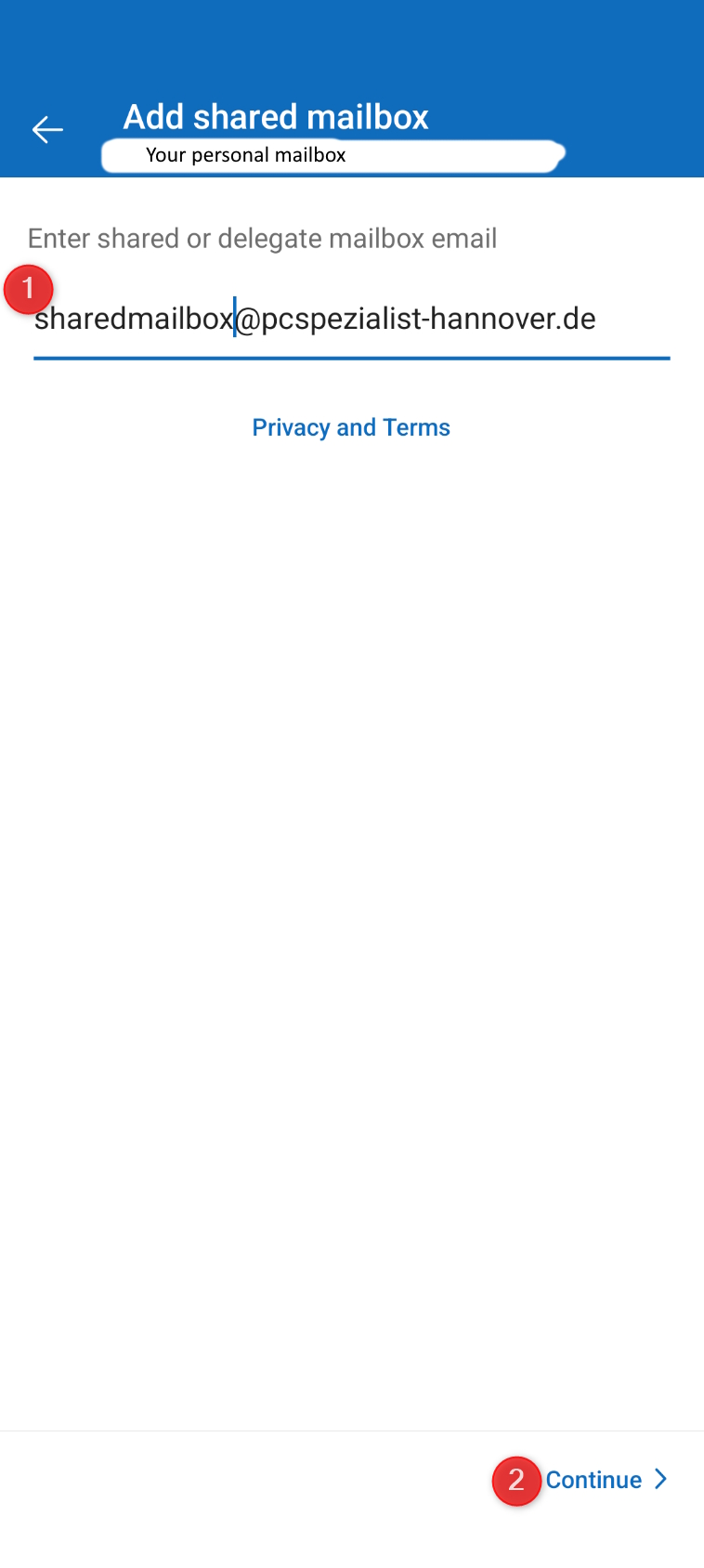
 Enter the shared mailbox you would like to add and click Continue (authentification is handled by your personal account)
 Nice! 👍