# Sync SharePoint Library (aka Group Folder) With Computer (File Explorer Or Finder)
It is useful to have direct access to the company's files on your computer. There are two easy ways to achieve this.
Option 1:
- Open [office.com](https://www.office.com/) in your browser and go to SharePoint
- [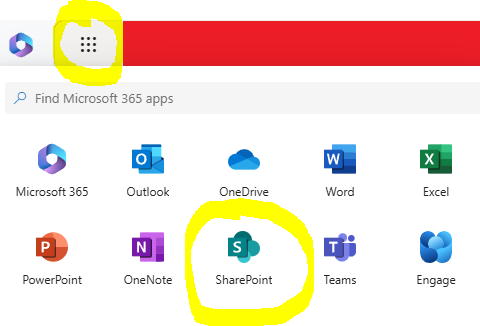](https://wiki.pcspezialist-hannover.de/uploads/images/gallery/2024-11/group1.PNG)
- Select the site you want to use
- Open **Documents** and click on **Sync**
- **[](https://wiki.pcspezialist-hannover.de/uploads/images/gallery/2024-11/group2.PNG)**
- Wait a few minutes and check if you have an icon showing an office building in your file explorer or Finder
- **[](https://wiki.pcspezialist-hannover.de/uploads/images/gallery/2024-11/group3.PNG)**
- **Good to know:**
- The files in the [](https://wiki.pcspezialist-hannover.de/uploads/images/gallery/2024-11/sharepointsync.png) office building are for everyone in that team.
- The files in the [](https://wiki.pcspezialist-hannover.de/uploads/images/gallery/2024-11/onedrivefileexplorer.png) cloud are only for you by default.
Option 2:
TBD